> ## Documentation Index
> Fetch the complete documentation index at: https://help.snsboost-ai.com/llms.txt
> Use this file to discover all available pages before exploring further.
# ナレッジに情報を登録する
## この機能でできること
料金表や予約ルールなど、グループで共通の情報を登録しておけます。登録した内容は、自動返信の回答を作るときに参照されます。
## 使う前の準備
特にありません。
## 手順
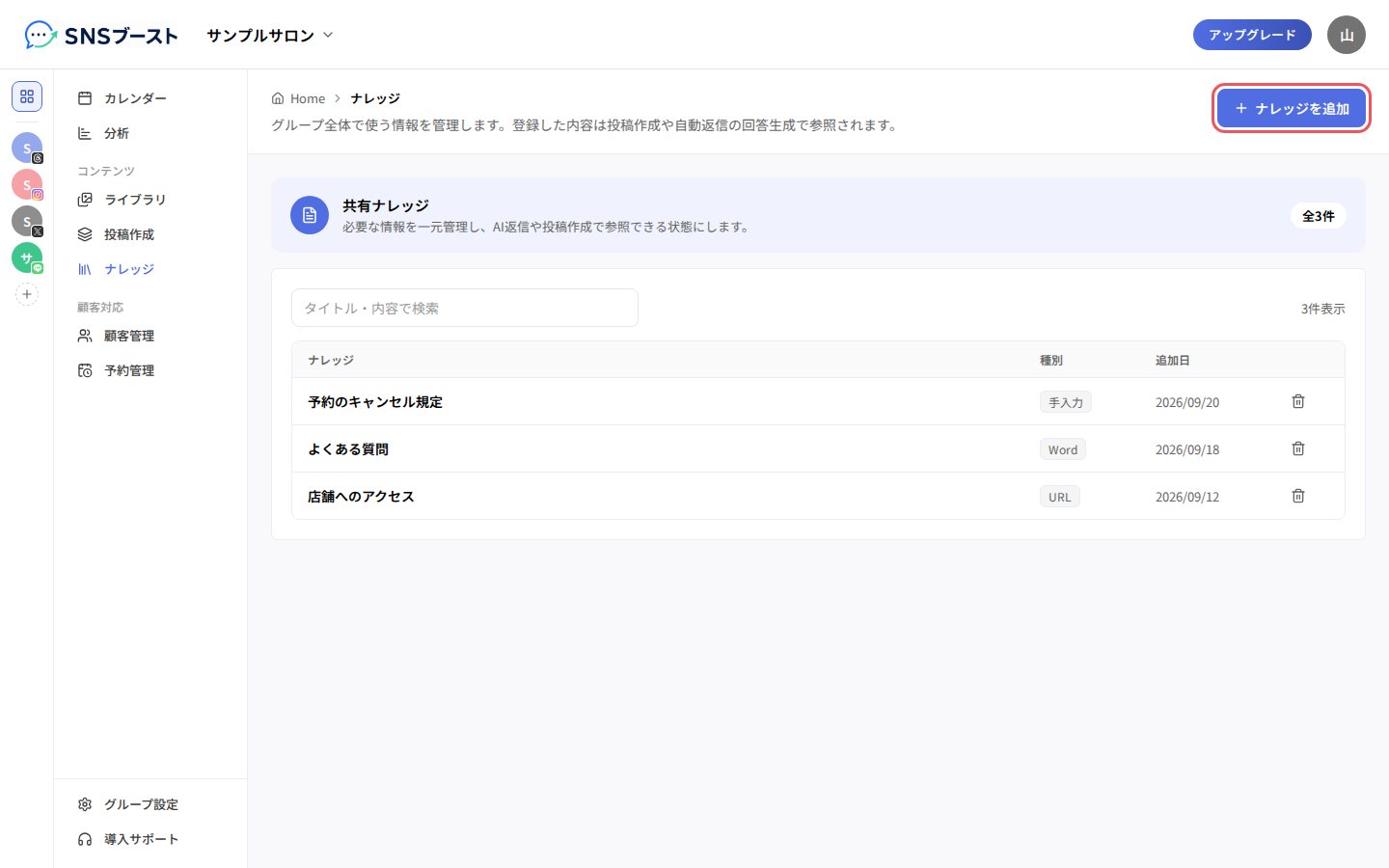
### 1. 「ナレッジ」を開き、「ナレッジを追加」を押す
 ### 2. ファイルを選んで「作成する」を押す
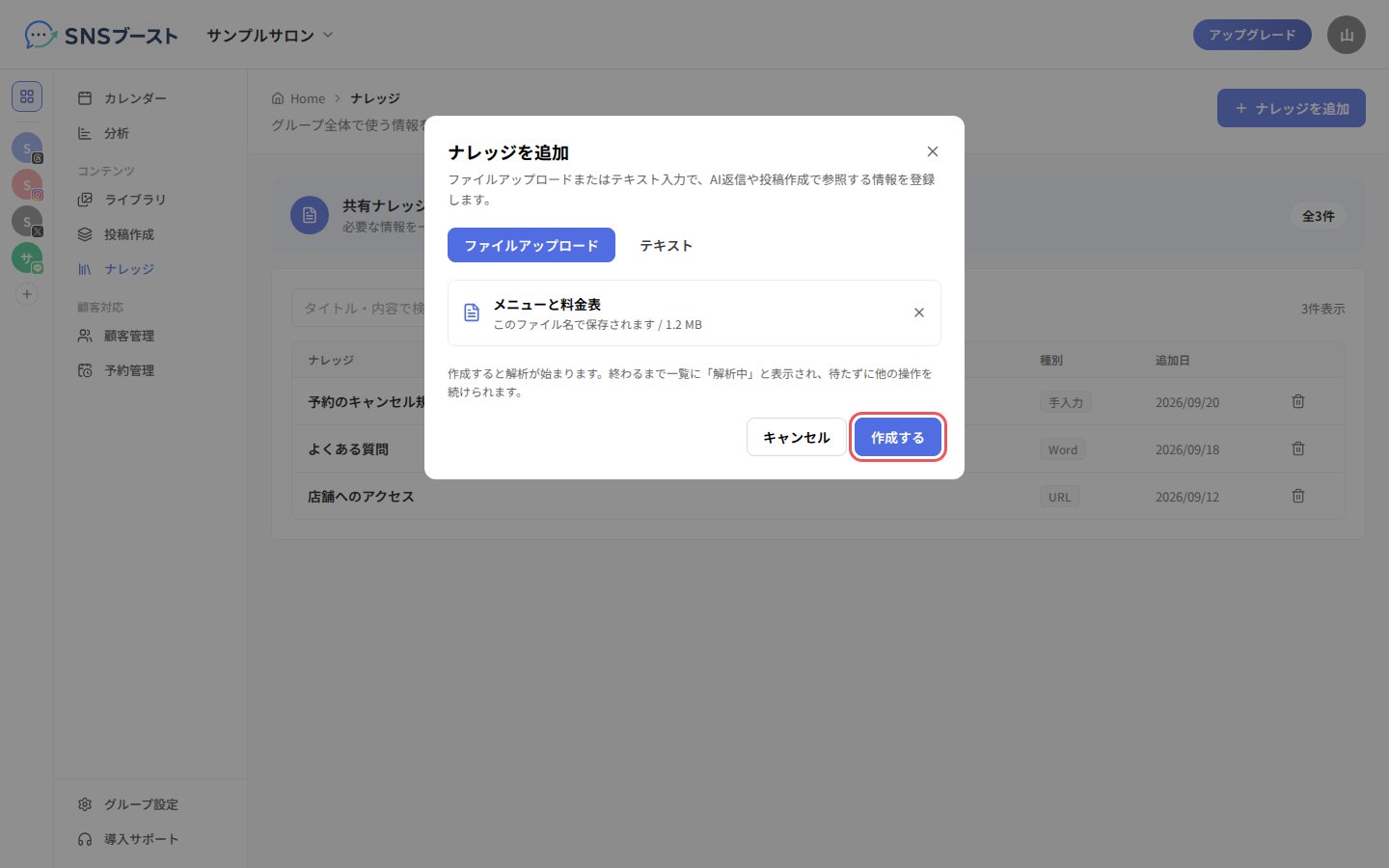 文章を直接書きたいときは「テキスト」に切り替え、「内容」に入力します。
### 3. 解析が終わるのを待つ
文章を直接書きたいときは「テキスト」に切り替え、「内容」に入力します。
### 3. 解析が終わるのを待つ
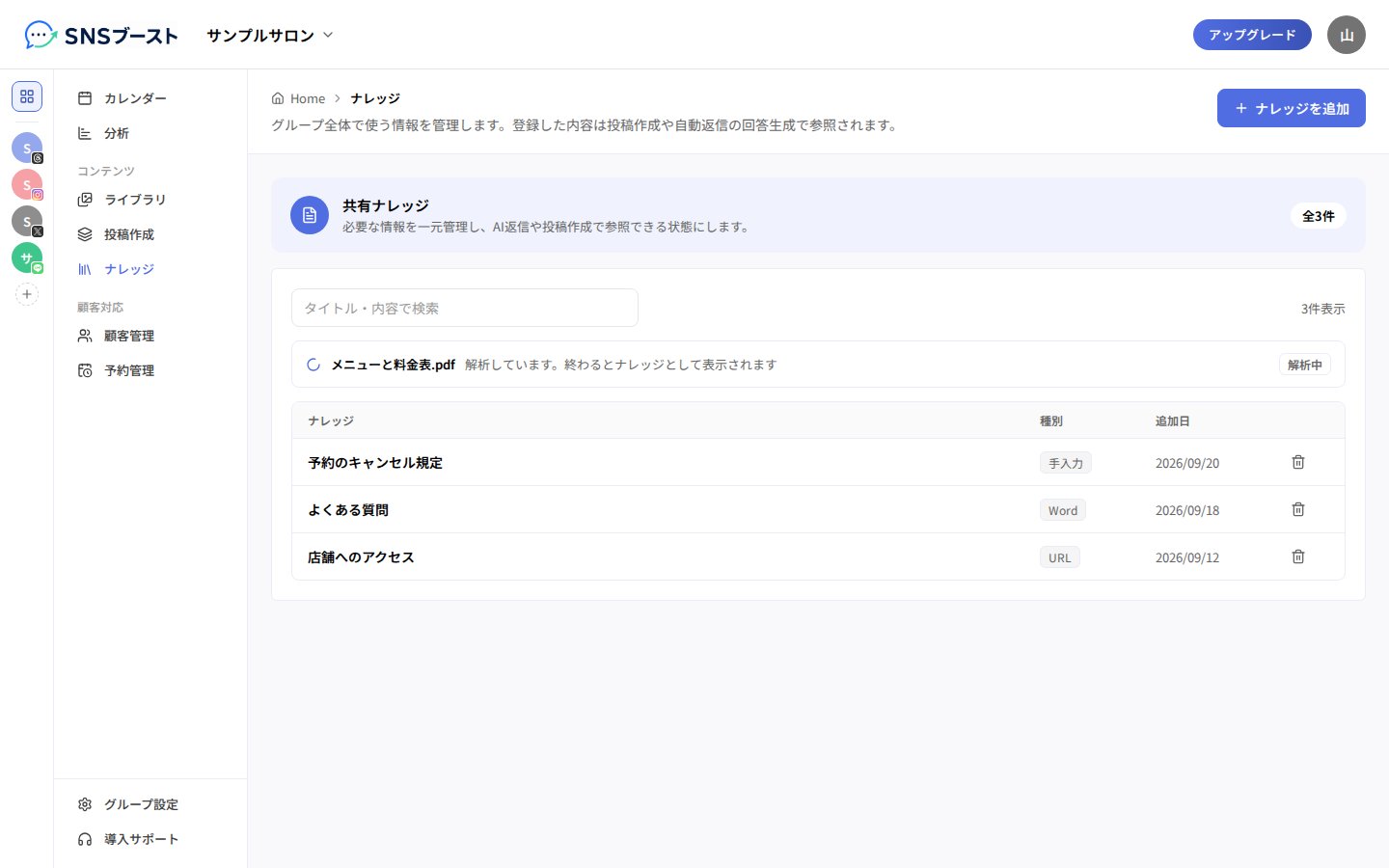 解析中も、ほかの操作を続けられます。終わると、一覧にナレッジとして表示されます。
## つまずきやすい点
* 登録できるファイルは、PDF、Word(docx)、PowerPoint(pptx)、Excel(xlsx/xls)、テキスト(txt/md/csv/json)です。1ファイル50MBまでです。
* テキストで登録できるのは、1件あたり24000文字までです。長いときは分けて登録してください。
## Related topics
- [プランを変更して支払い方法を登録する](/billing-plan/guide.md)
- [オートパイロットで定期的に投稿する](/autopilot/guide.md)
- [SNSアカウントを連携する](/connect-accounts/guide.md)
- [LINE公式アカウントを連携する](/line-connection/guide.md)
- [顧客管理でLINEの問い合わせに対応する](/crm/guide.md)
This documentation is built and hosted on [Mintlify](https://mintlify.com), a developer documentation platform.
解析中も、ほかの操作を続けられます。終わると、一覧にナレッジとして表示されます。
## つまずきやすい点
* 登録できるファイルは、PDF、Word(docx)、PowerPoint(pptx)、Excel(xlsx/xls)、テキスト(txt/md/csv/json)です。1ファイル50MBまでです。
* テキストで登録できるのは、1件あたり24000文字までです。長いときは分けて登録してください。
## Related topics
- [プランを変更して支払い方法を登録する](/billing-plan/guide.md)
- [オートパイロットで定期的に投稿する](/autopilot/guide.md)
- [SNSアカウントを連携する](/connect-accounts/guide.md)
- [LINE公式アカウントを連携する](/line-connection/guide.md)
- [顧客管理でLINEの問い合わせに対応する](/crm/guide.md)
This documentation is built and hosted on [Mintlify](https://mintlify.com), a developer documentation platform.