> ## Documentation Index
> Fetch the complete documentation index at: https://help.snsboost-ai.com/llms.txt
> Use this file to discover all available pages before exploring further.
# プランを変更して支払い方法を登録する
## この機能でできること
グループで使うプランを確かめて、変更できます。支払い方法の登録や、支払い履歴の確認も同じ画面から行えます。
## 使う前の準備
特にありません。
## 手順
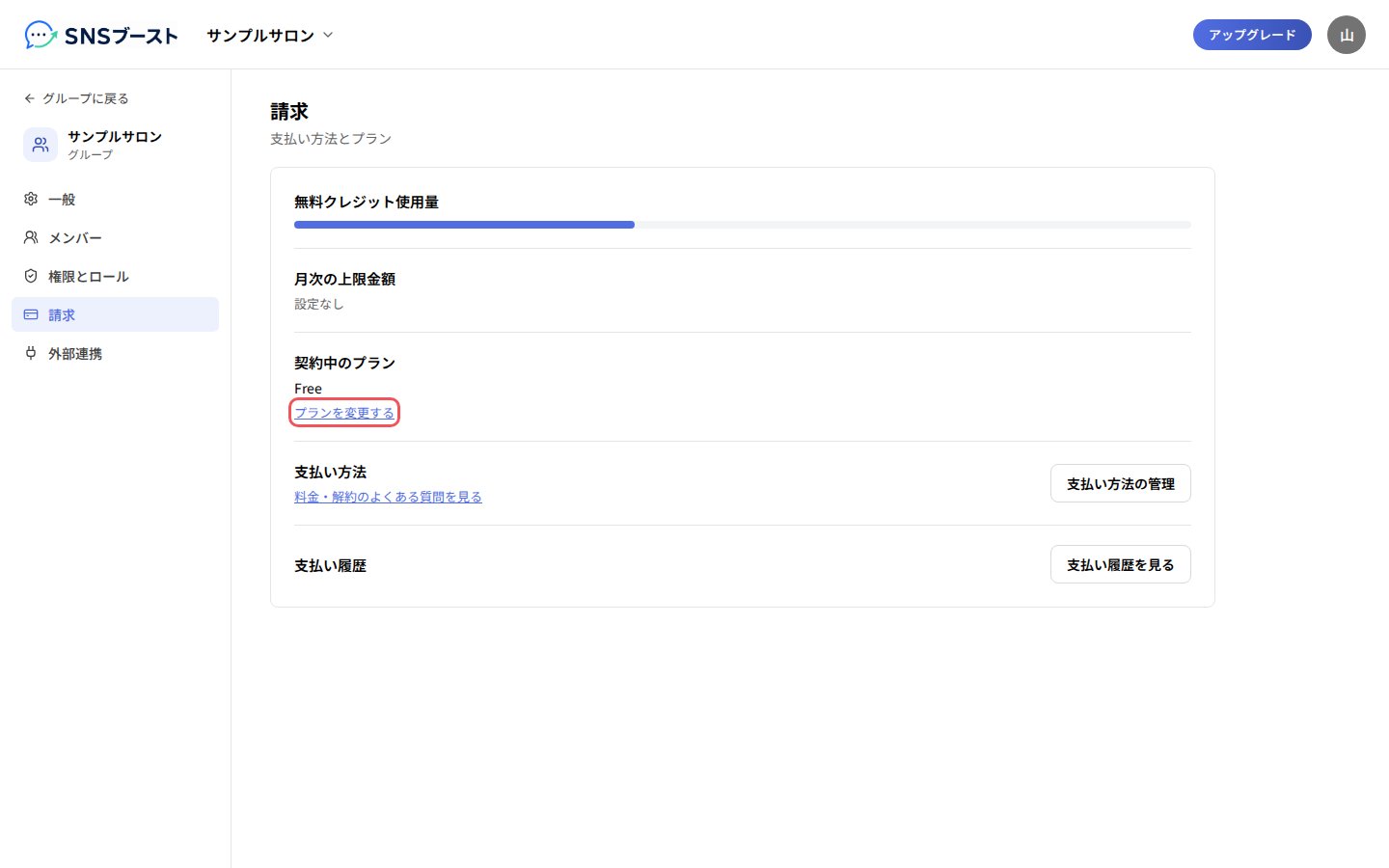
### 1. 「グループ設定」の「請求」を開き、「プランを変更する」を押す
 ### 2. 「月額払い」か「年額払い」を選び、使いたいプランのボタンを押す
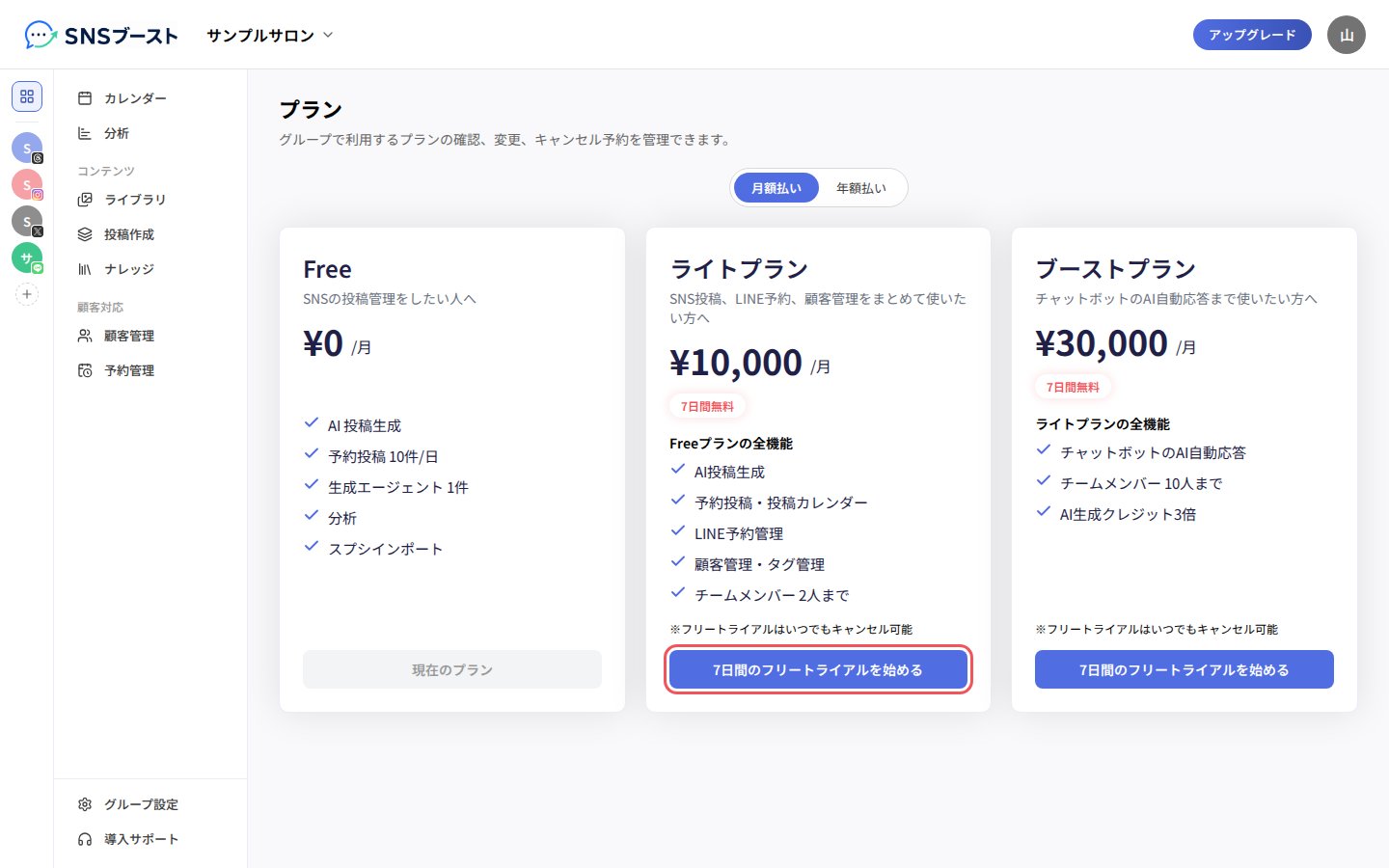 フリートライアルが使える場合は、ボタンに「7日間のフリートライアルを始める」と表示されます。
### 3. 「請求」に戻り、「支払い方法の管理」を押す
フリートライアルが使える場合は、ボタンに「7日間のフリートライアルを始める」と表示されます。
### 3. 「請求」に戻り、「支払い方法の管理」を押す
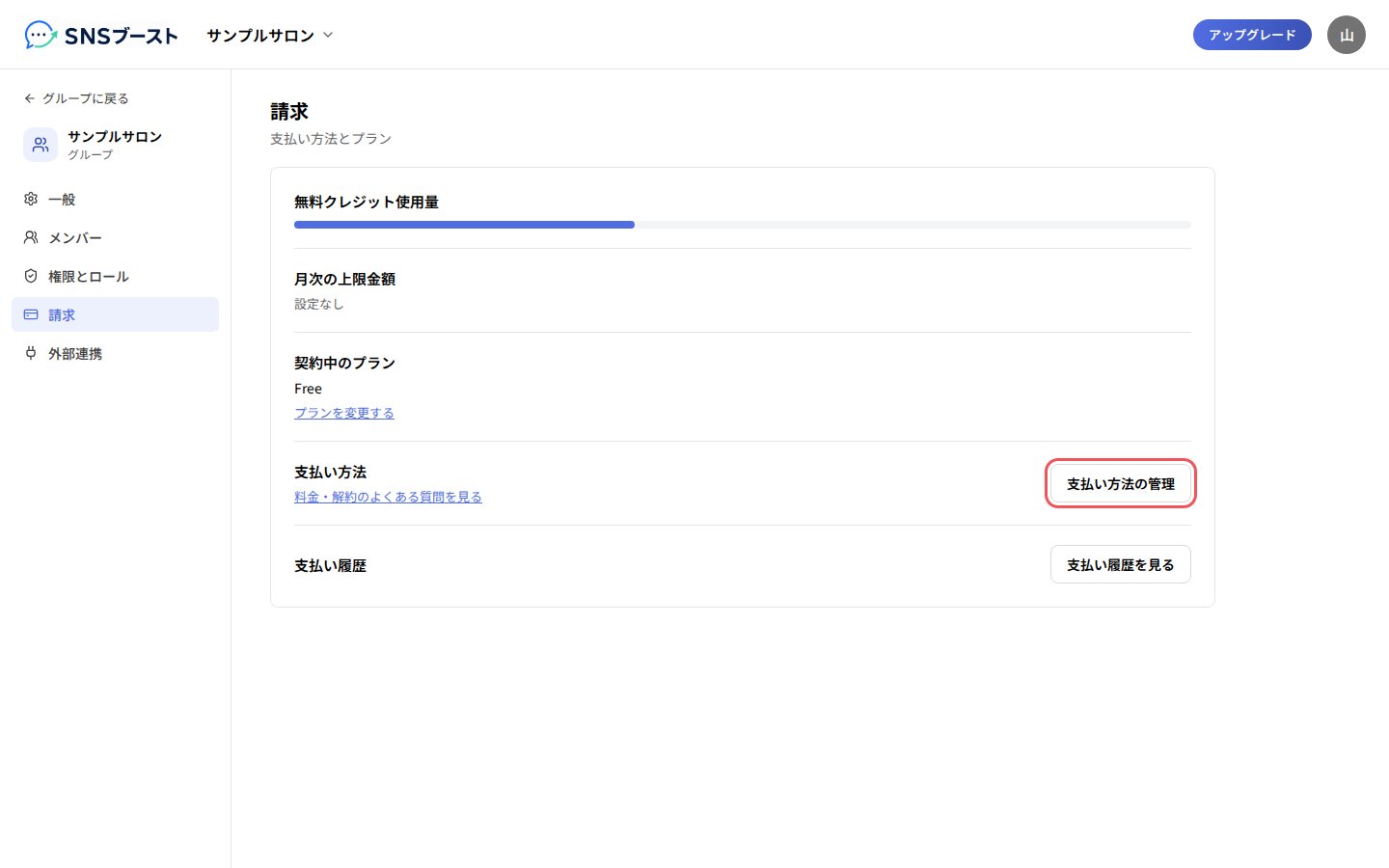 これまでの支払いは、「支払い履歴を見る」から確かめられます。
## つまずきやすい点
* 年額払いのプランを契約している場合は、月額払いのプランへは変更できません。
* 料金や解約で迷ったときは、「料金・解約のよくある質問を見る」を開いてください。
## Related topics
- [ナレッジに情報を登録する](/knowledge/guide.md)
- [オートパイロットで定期的に投稿する](/autopilot/guide.md)
- [メンバーを招待して権限を決める](/members/guide.md)
- [反応の良い投稿を自動で再投稿する](/reposts/guide.md)
- [外部連携でSNSチャンネルを管理する](/integrations/guide.md)
This documentation is built and hosted on [Mintlify](https://mintlify.com), a developer documentation platform.
これまでの支払いは、「支払い履歴を見る」から確かめられます。
## つまずきやすい点
* 年額払いのプランを契約している場合は、月額払いのプランへは変更できません。
* 料金や解約で迷ったときは、「料金・解約のよくある質問を見る」を開いてください。
## Related topics
- [ナレッジに情報を登録する](/knowledge/guide.md)
- [オートパイロットで定期的に投稿する](/autopilot/guide.md)
- [メンバーを招待して権限を決める](/members/guide.md)
- [反応の良い投稿を自動で再投稿する](/reposts/guide.md)
- [外部連携でSNSチャンネルを管理する](/integrations/guide.md)
This documentation is built and hosted on [Mintlify](https://mintlify.com), a developer documentation platform.